Understand why your printer goes offline, clear stuck spooler queues, resolve "Driver Unavailable" alerts, and setup Wi-Fi without any confusion.
No paywalls or software
Real diagnostic screenshots
HP, Canon, Epson & Brother

Browse plain-language tutorials designed to help you diagnose and fix common printer issues, connections, and spooler errors without confusing jargon.
Diagnose why printers drop offline, resolve IP conflicts, and reconnect seamlessly to Wi-Fi & LAN networks.
Clear stubborn stuck print jobs, wipe corrupted cache files, and restart the spooler service safely.
Learn how printer INF drivers work, fix "Driver Unavailable" alerts, and configure virtual USB ports.
Troubleshoot blank sheet printing, unclog dried ink nozzles, test alignment, and perform hardware resets.
Follow clear step-by-step diagnostic workflows covering driver recognition, print queue clearing, network sharing, and printhead recovery.
Understand why printers unexpectedly show offline status, how to wake sleep modes, verify IP connections, and toggle offline status settings.
 #02
Windows Service
#02
Windows Service
Learn how to safely cancel stubborn print documents stuck in the queue and restart the Windows Print Spooler service via services.msc.
 #03
Drivers & Setup
#03
Drivers & Setup
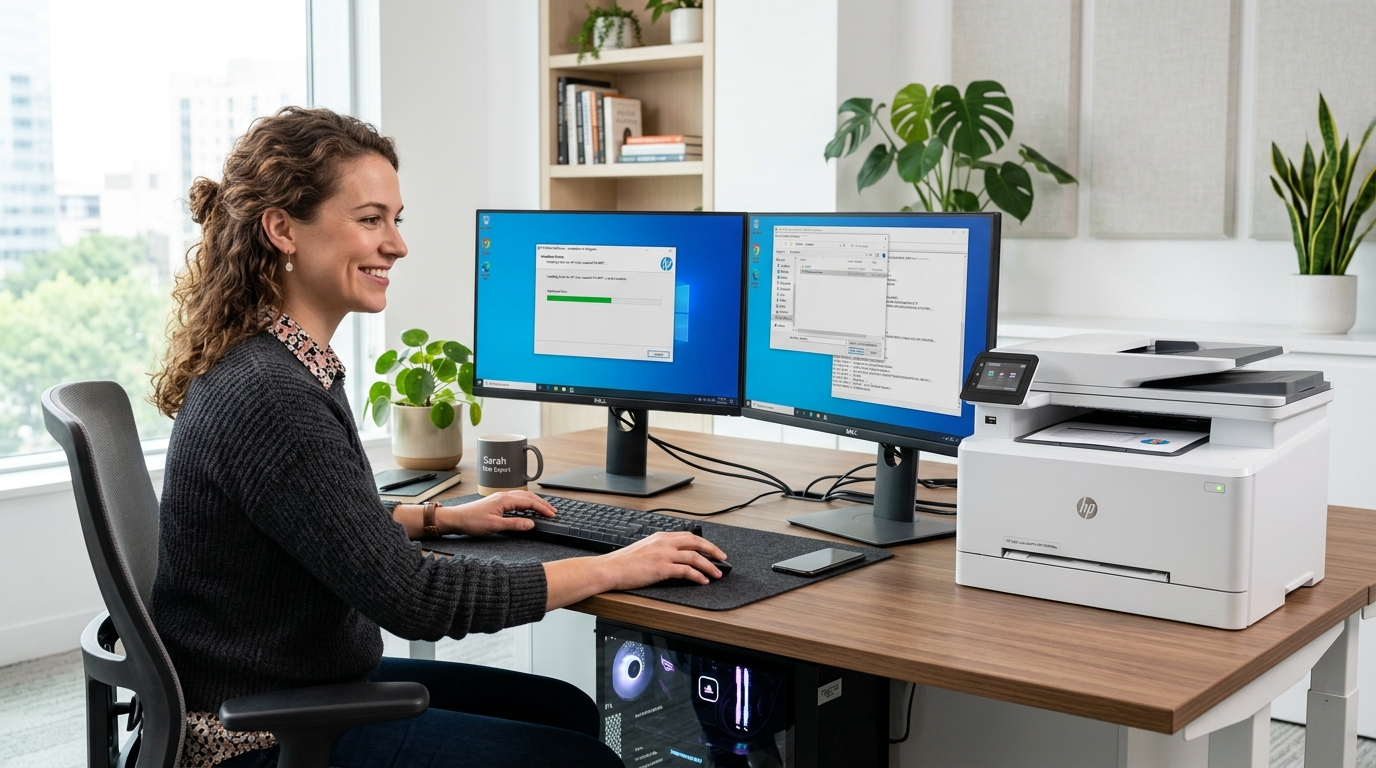
Discover how operating systems communicate with printers through driver packages, INF file installation, and virtual USB port assignment.
 #04
Network & LAN
#04
Network & LAN
Step-by-step concepts for connecting wireless printers to local routers, assigning static DHCP IP addresses, and sharing access across home PCs.
 #05
Print Quality
#05
Print Quality
Troubleshoot blank sheet printing, remove dried ink clogs from nozzles, inspect cartridge protective seals, and perform head alignment checks.
 #06
Reset & NVRAM
#06
Reset & NVRAM
Understand when to perform factory default resets, power drain cycles, and NVRAM memory clears to restore normal device operations.
 #07
System Diagnostics
#07
System Diagnostics
Decode yellow exclamation marks, Code 28 errors, and unknown device entries in Windows Device Manager with hardware ID matching.
 #08
USB & Ports
#08
USB & Ports
Learn how Windows detects direct USB printer connections, how to reset USB controllers, and ensure virtual ports are assigned correctly.
Follow this structured, beginner-friendly diagnostic flow to identify, troubleshoot, and fix any printer symptom without confusion or paid software.
Find the exact issue you are facing—whether your printer is showing offline status, jobs are stuck in queue, drivers are missing, or output is blank.
Read clear, step-by-step instructions accompanied by real settings paths, toggle locations, and beginner-friendly explanations without technical jargon.
Run a quick test print, confirm network and IP communication status, and learn proactive maintenance tips to keep your printer printing smoothly.
Read in-depth explanations on offline status, factory resets, local sharing, and printhead diagnostics.
 Connectivity
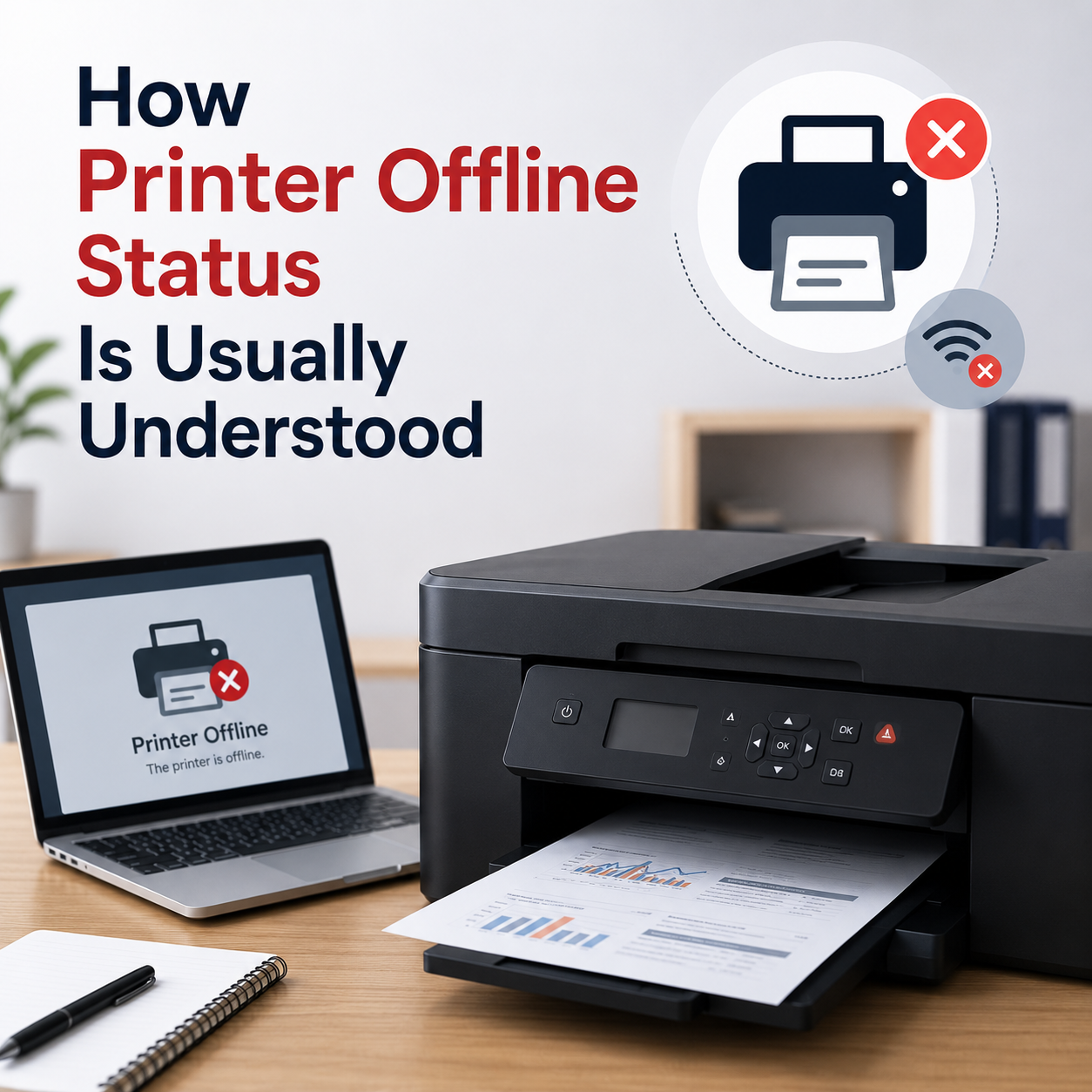
Learn what causes offline status in Windows 10 & 11, how SNMP port queries work, and how to verify communication.
 Maintenance
Understand what happens during NVRAM clears, power cycles, and how factory resets restore dropped network adapters.
 Print Quality
Explore the common physical and digital reasons for blank pages, including dried printhead nozzles and tape seal issues.
 Network & LAN
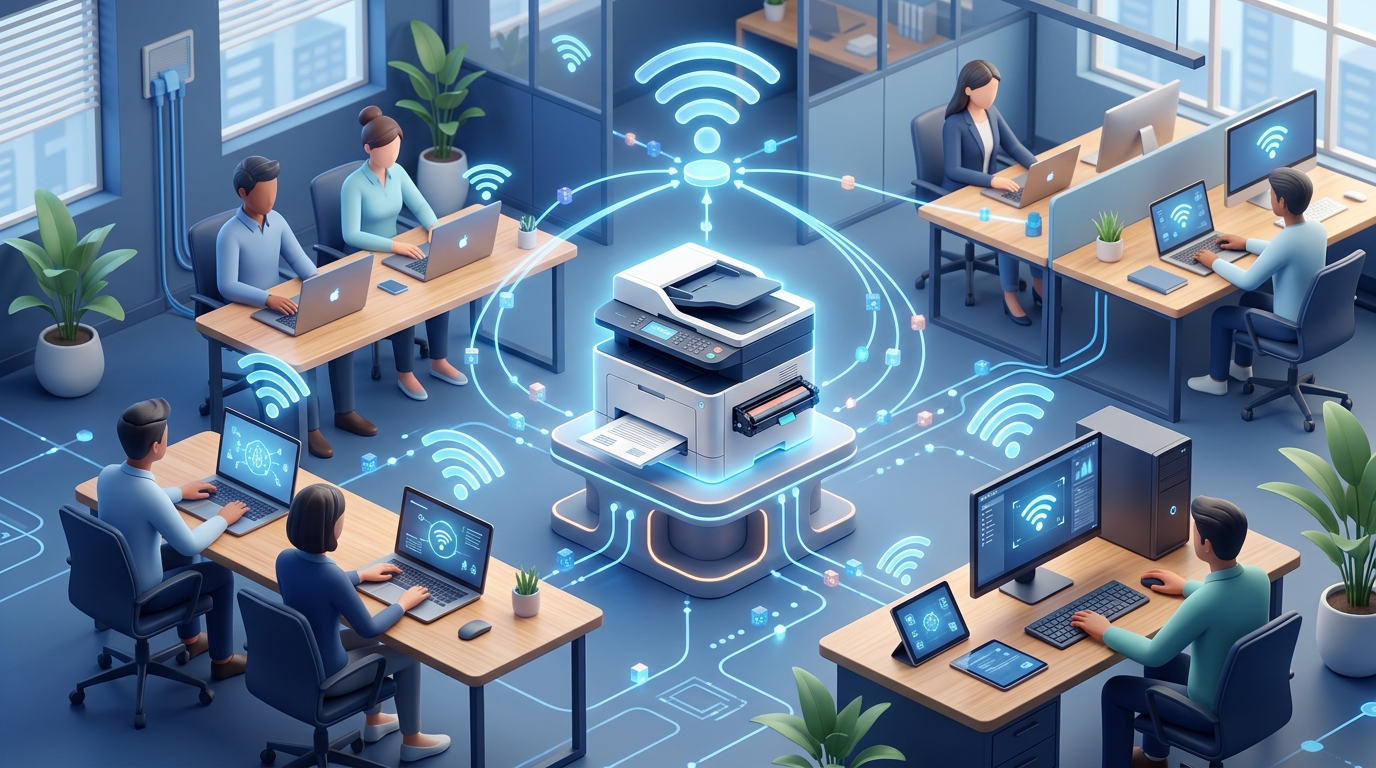
Step-by-step guidance on enabling Windows printer sharing, configuring router permissions, and managing shared queues.
We believe troubleshooting common printer problems should not require confusing technical manuals or unnecessary software downloads.
Every topic is written in simple, everyday language so technical printer terms, error codes, and port settings are clear.
Our tutorials focus exclusively on understanding how printers work, connection protocols, and standard manufacturer troubleshooting.
Browse our complete learning library without sign-ups, accounts, remote access tools, or paid subscriptions.
Clear answers about our educational guides, diagnostics, and independent learning library.
No. knowshift is strictly an independent educational resource. We publish clear, step-by-step troubleshooting articles and learning guides. We do not provide phone support, remote desktop assistance, paid driver software, or repair services.
You can explore step-by-step guides for printer offline alerts, Windows Print Spooler queue lockups, missing INF driver errors, USB port routing, local Wi-Fi printer setup, network printer sharing, blank page troubleshooting, and factory hardware resets.
Printer offline status occurs when Windows loses the active network or USB path to the printer. This is commonly caused by router DHCP dynamic IP reassignments, paused print queues, loose physical cables, or SNMP status query mismatches in the printer port properties.
When a corrupted document file is sent to the printer, Windows queues it and halts subsequent jobs. Stopping the Print Spooler service allows safely deleting pending temporary files in the System32\spool\PRINTERS folder, instantly clearing the queue.
No. All our learning guides utilize standard built-in Windows diagnostic utilities and official manufacturer settings. We do not sell tools, ask for fees, or require personal account registration.